Mac with Windows Keyboard
How to Use One External Keyboard Seamlessly with Both macOS and Ubuntu
If you're someone like me who uses macOS for work and Ubuntu Linux for personal projects, you've probably faced a common annoyance — keyboard layout differences between the two systems. It becomes especially frustrating when trying to use a single external keyboard across both platforms.
Good news — there's a simple fix!
💡 The Hack to Make macOS and Ubuntu Keyboard Layouts Compatible
While browsing for solutions, I stumbled upon this helpful YouTube tutorial that saved me a ton of time.
The main issue usually lies with the Command (⌘) and Option (⌥) keys on macOS, which don’t align with the Alt and Super (Windows) keys on Linux-based systems. The trick is to remap modifier keys in macOS to mimic the Ubuntu layout.
🔧 Steps to Remap Keys on macOS:
-
Open System Settings
-
Navigate to Keyboard > Keyboard Shortcuts
-
Click on Modifier Keys
-
Swap the Option and Command keys
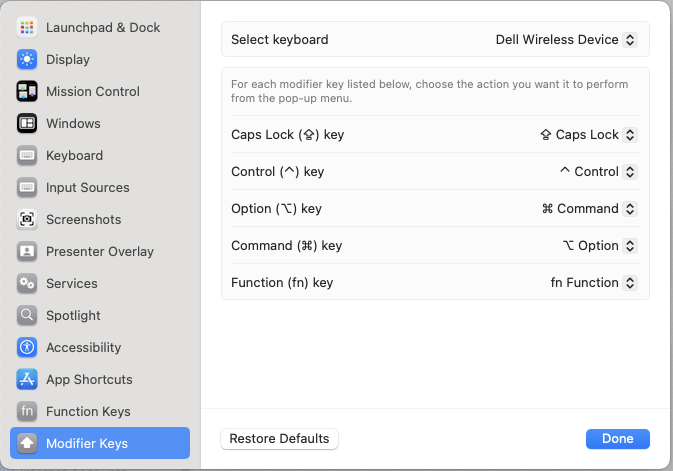
Once you do this, your keyboard will behave more consistently across both systems — no need to mentally remap keys every time you switch!
🔁 Want to Revert the Changes?
If you ever want to reset your keyboard to its default configuration, simply delete this preference file:
/Library/Preferences/com.apple.keyboardtype.plist
And you're back to a fresh setup!
Pro Tip: Use one external keyboard for both macOS and Linux without confusion — a game-changer for dual-OS users and developers.